ClassHive Developer Guide
Acknowledgements
This project is based on the AddressBook Level-3 desktop application.
Removal of whitespace inside a String: Taken from https://stackoverflow.com/questions/33381237/string-doesnt-equal-string-with-spaces
- Used in lines 61-62 in Name.java
Setting up, getting started
Refer to the guide Setting up and getting started.
Design
Architecture
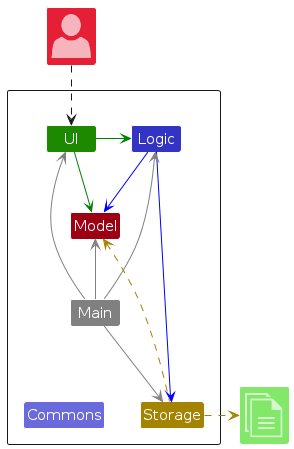
The Architecture Diagram given above explains the high-level design of the App.
Given below is a quick overview of main components and how they interact with each other.
Main components of the architecture
Main (consisting of classes Main and MainApp) is in charge of the app launch and shut down.
- At app launch, it initializes the other components in the correct sequence, and connects them up with each other.
- At shut down, it shuts down the other components and invokes cleanup methods where necessary.
The bulk of the app's work is done by the following four components:
UI: The UI of the App.Logic: The command executor.Model: Holds the data of the App in memory.Storage: Reads data from, and writes data to, the hard disk.
Commons represents a collection of classes used by multiple other components.
How the architecture components interact with each other
The Sequence Diagram below shows how the components interact with each other for the scenario where the user issues the command delete n/John Doe p/98765432.
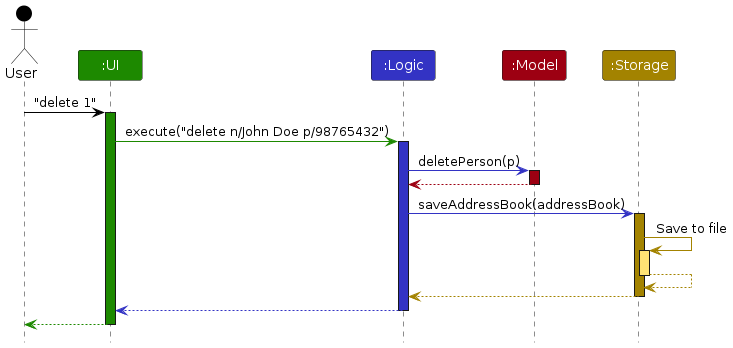
Each of the four main components (also shown in the diagram above),
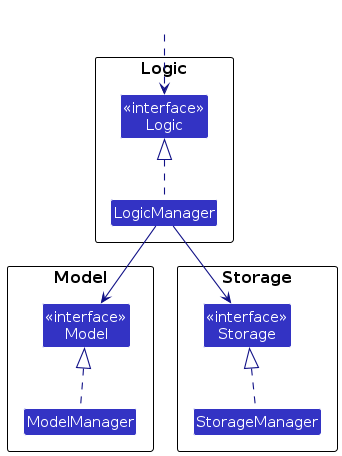
- defines its API in an
interfacewith the same name as the Component. - implements its functionality using a concrete
{Component Name}Managerclass (which follows the corresponding APIinterfacementioned in the previous point.
For example, the Logic component defines its API in the Logic.java interface and implements its functionality using the LogicManager.java class which follows the Logic interface. Other components interact with a given component through its interface rather than the concrete class (reason: to prevent outside component's being coupled to the implementation of a component), as illustrated in the (partial) class diagram below.
The sections below give more details of each component.
UI component
The API of this component is specified in Ui.java
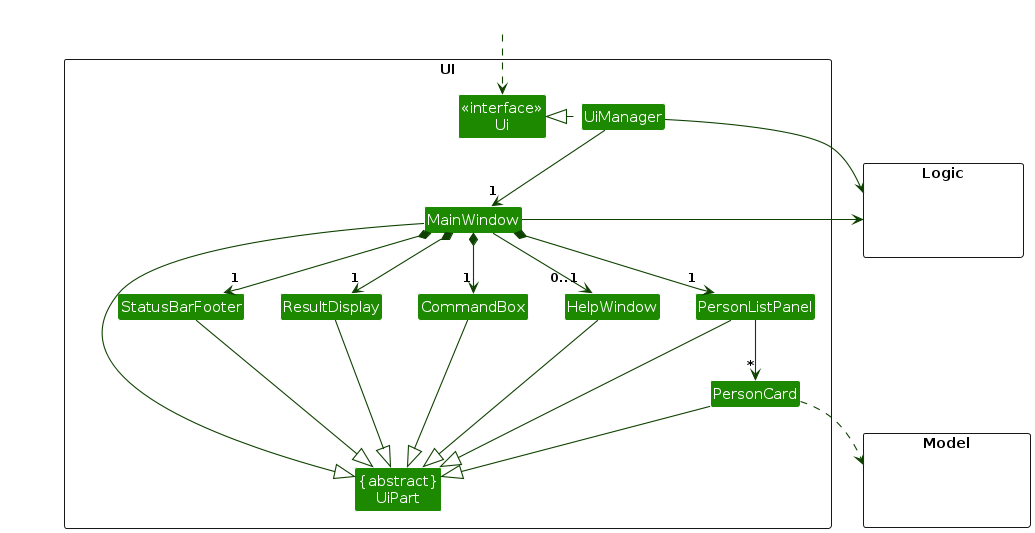
The UI consists of a MainWindow that is made up of parts e.g.CommandBox, ResultDisplay, PersonListPanel, StatusBarFooter etc. All these, including the MainWindow, inherit from the abstract UiPart class which captures the commonalities between classes that represent parts of the visible GUI.
The UI component uses the JavaFx UI framework. The layout of these UI parts are defined in matching .fxml files that are in the src/main/resources/view folder. For example, the layout of the MainWindow is specified in MainWindow.fxml
The UI component,
- executes user commands using the
Logiccomponent. - listens for changes to
Modeldata so that the UI can be updated with the modified data. - keeps a reference to the
Logiccomponent, because theUIrelies on theLogicto execute commands. - depends on some classes in the
Modelcomponent, as it displaysPersonobject residing in theModel.
Logic component
API : Logic.java
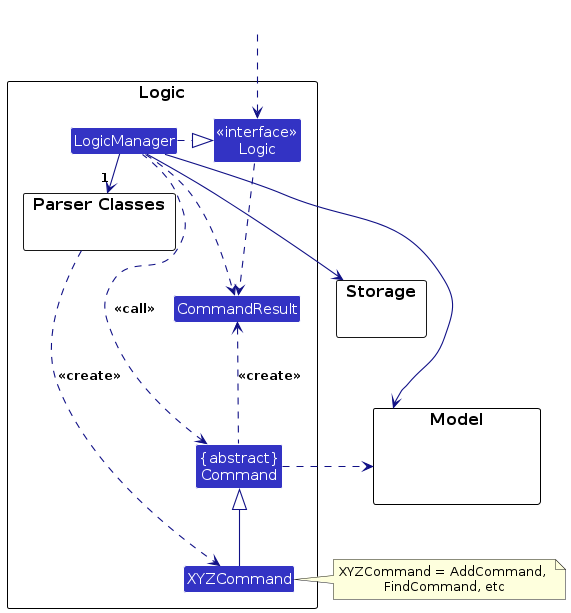
This is a (partial) class diagram of the Logic component:
The sequence diagram below illustrates the interactions within the Logic component, taking execute("delete 1") API call as an example.
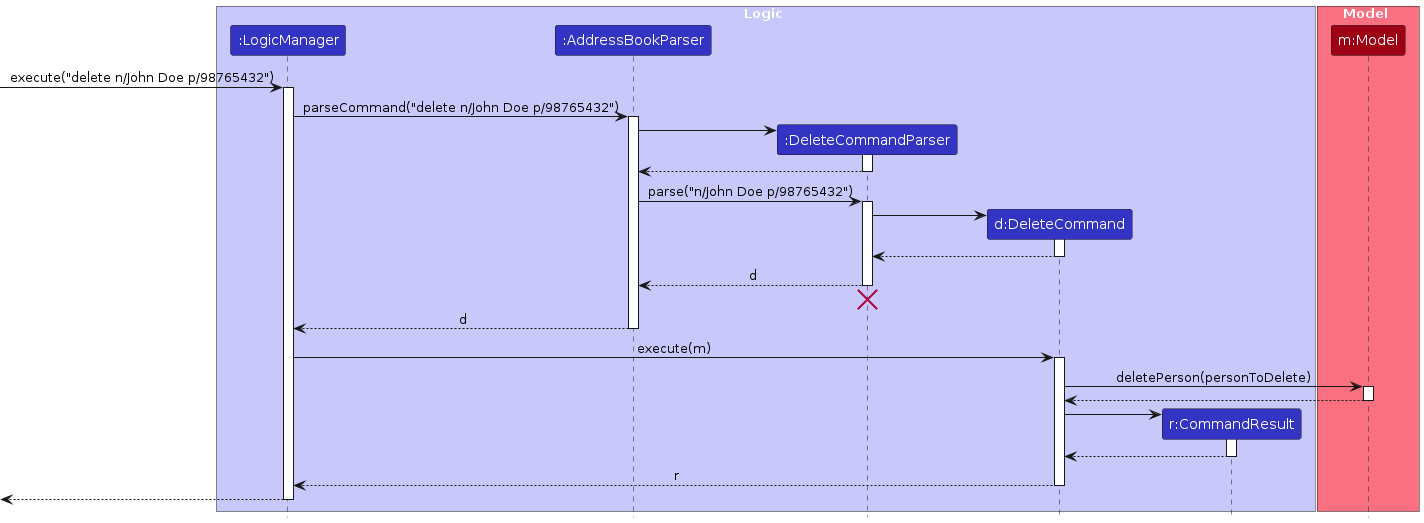
Note: The lifeline for DeleteCommandParser should end at the destroy marker (X) but due to a limitation of PlantUML, the lifeline continues till the end of diagram.
How the Logic component works:
- When
Logicis called upon to execute a command, it is passed to anAddressBookParserobject which in turn creates a parser that matches the command (e.g.,DeleteCommandParser) and uses it to parse the command. - This results in a
Commandobject (more precisely, an object of one of its subclasses e.g.,DeleteCommand) which is executed by theLogicManager. - The command can communicate with the
Modelwhen it is executed (e.g. to delete a person).
Note that although this is shown as a single step in the diagram above (for simplicity), in the code it can take several interactions (between the command object and theModel) to achieve. - The result of the command execution is encapsulated as a
CommandResultobject which is returned back fromLogic.
Here are the other classes in Logic (omitted from the class diagram above) that are used for parsing a user command:
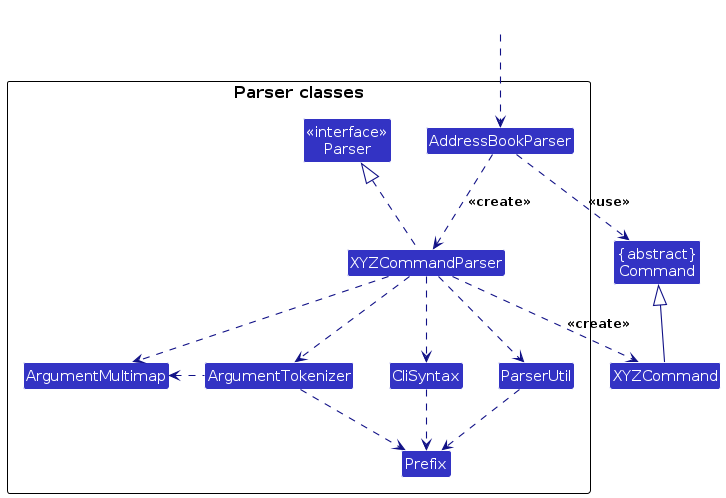
How the parsing works:
- When called upon to parse a user command, the
AddressBookParserclass creates anXYZCommandParser(XYZis a placeholder for the specific command name e.g.,AddCommandParser) which uses the other classes shown above to parse the user command and create aXYZCommandobject (e.g.,AddCommand) which theAddressBookParserreturns back as aCommandobject. - All
XYZCommandParserclasses (e.g.,AddCommandParser,DeleteCommandParser, ...) inherit from theParserinterface so that they can be treated similarly where possible e.g, during testing.
Model component
API : Model.java
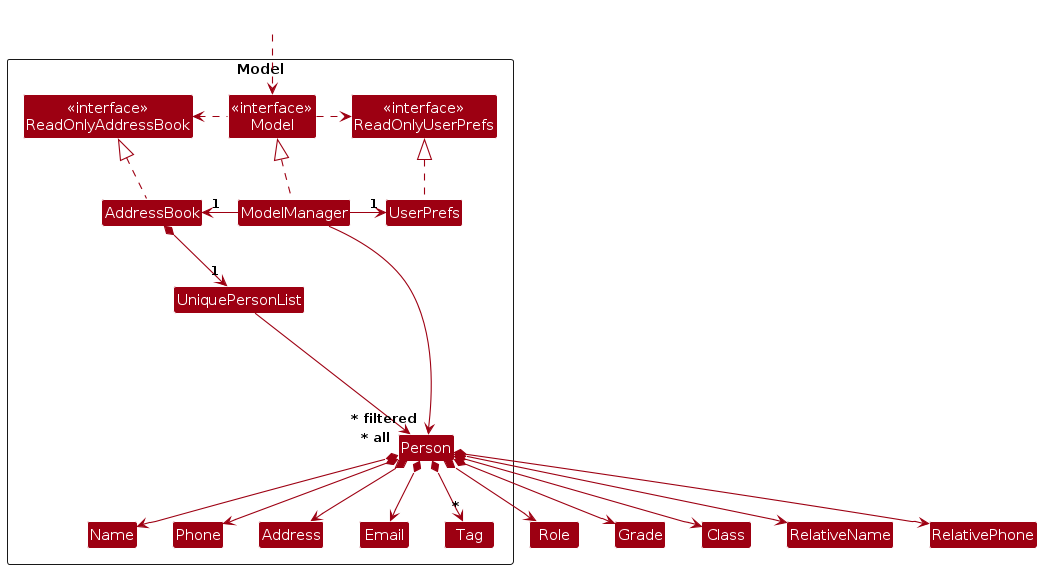
The Model component,
- stores the address book data i.e., all
Personobjects (which are contained in aUniquePersonListobject). - stores the currently 'selected'
Personobjects (e.g., results of a search query) as a separate filtered list which is exposed to outsiders as an unmodifiableObservableList<Person>that can be 'observed' e.g. the UI can be bound to this list so that the UI automatically updates when the data in the list change. - stores a
UserPrefobject that represents the user’s preferences. This is exposed to the outside as aReadOnlyUserPrefobjects. - does not depend on any of the other three components (as the
Modelrepresents data entities of the domain, they should make sense on their own without depending on other components)
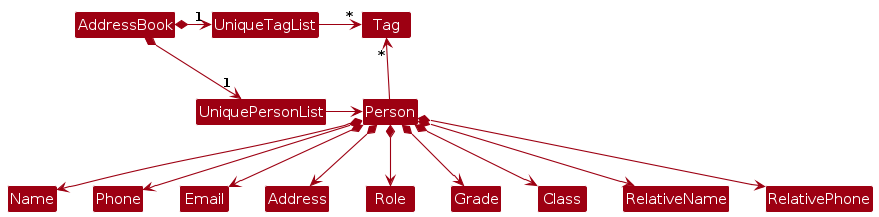
Note: An alternative (arguably, a more OOP) model is given below. It has a Tag list in the AddressBook, which Person references. This allows AddressBook to only require one Tag object per unique tag, instead of each Person needing their own Tag objects.
Storage component
API : Storage.java
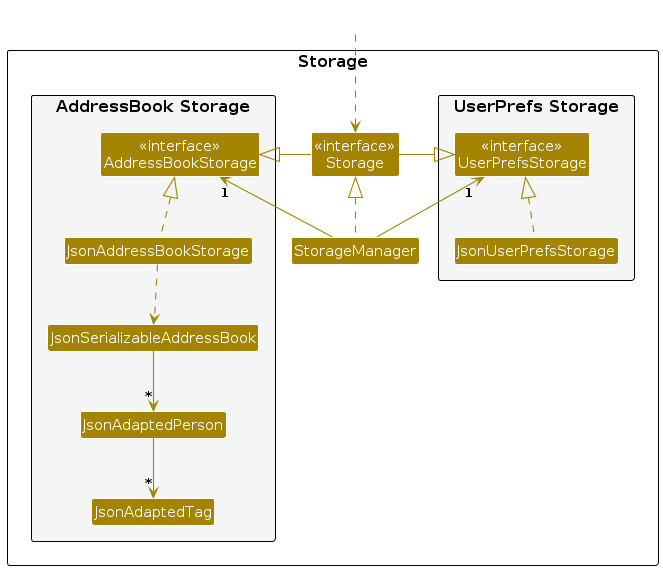
The Storage component,
- can save both address book data and user preference data in JSON format, and read them back into corresponding objects.
- inherits from both
AddressBookStorageandUserPrefStorage, which means it can be treated as either one (if only the functionality of only one is needed). - depends on some classes in the
Modelcomponent (because theStoragecomponent's job is to save/retrieve objects that belong to theModel)
Common classes
Classes used by multiple components are in the seedu.address.commons package.
Implementation
This section describes some noteworthy details on how certain features are implemented.
Find feature
Current Implementation
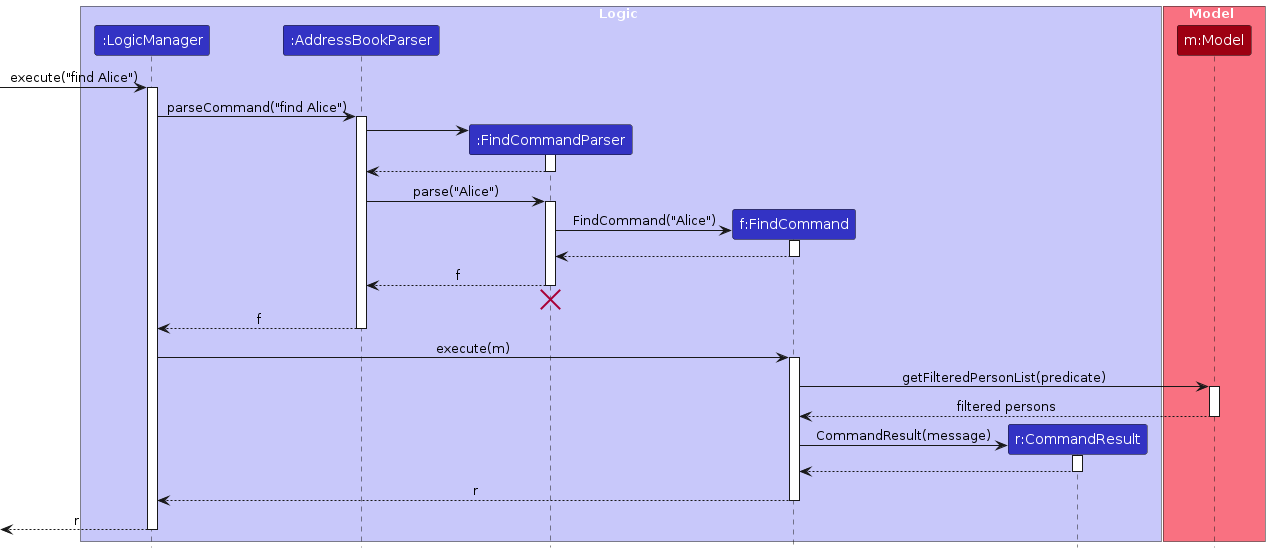
The find feature parses the search keys given by the user, and finds all contacts that match the search key in the currently displayed list. These contacts are then returned and displayed in the UI. The sequence diagram below illustrates the interactions between the different components:
Sort feature
Current Implementation
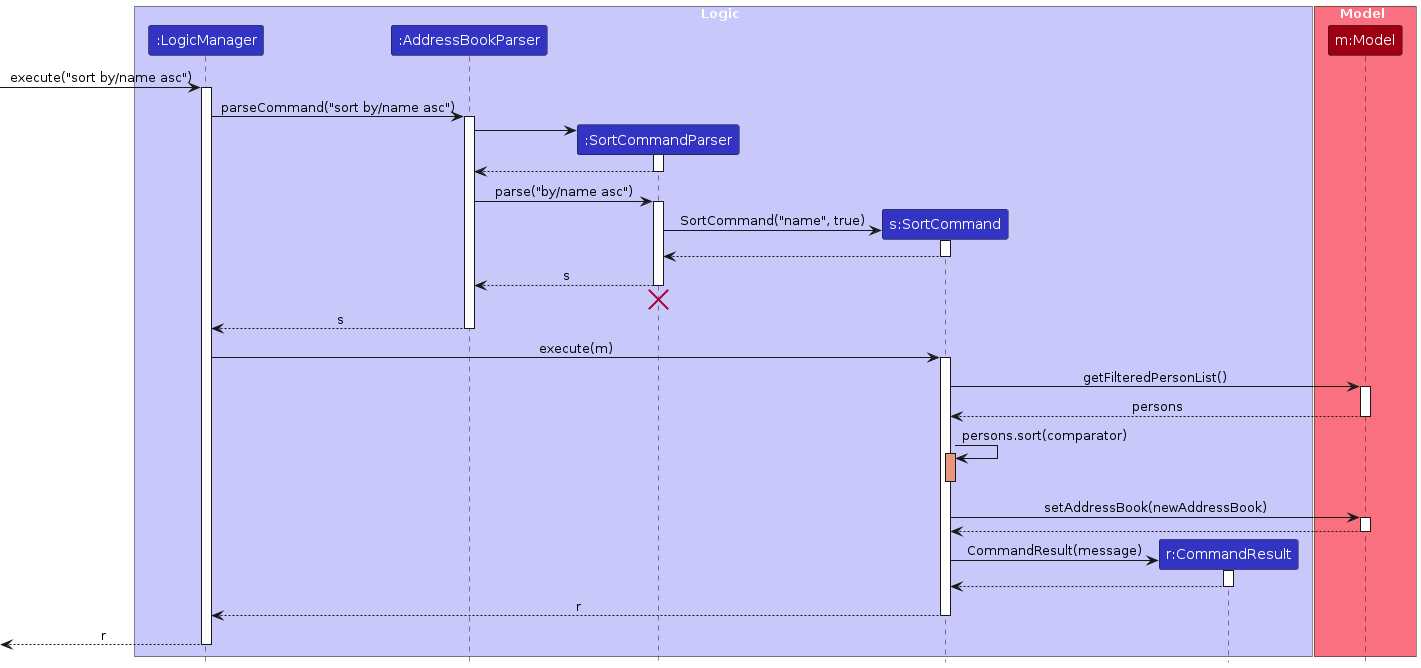
The sort feature parses the user-given parameters required for sorting, and displays the list of contacts in the UI in the user's preferred manner. The sequence diagram below illustrates the interactions between the different components:
Favourite feature
Current Implementation
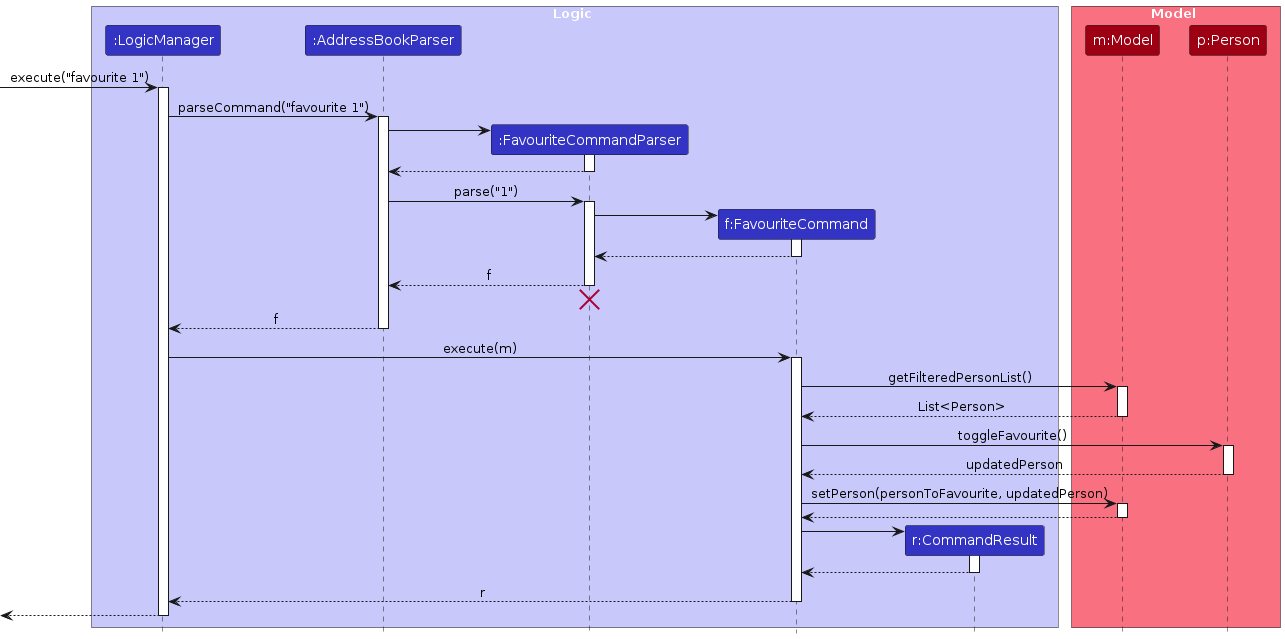
The favourite feature parses the index given by the user, and finds the contact with the matching index. This contact is marked as a favourite (or unmarked as a favourite) and the changes are displayed in the UI. The sequence diagram below illustrates the interactions between the different components:
Documentation, logging, testing, configuration, dev-ops
Appendix: Requirements
Product scope
Target user profile:
- teacher in a primary or secondary school
- interacts with many different students, parents and colleagues
- uses a computer or laptop very often
- prefers typing to mouse interactions
- needs help to track all her students' progress
Value proposition: manage contacts and provide convenient access to all the people teachers may work with
User stories
Priorities: High (must have) - * * *, Medium (nice to have) - * *, Low (unlikely to have) - *
| Priority | As a … | I want to … | So that I can… |
|---|---|---|---|
* * * | first time user | keep track of all my school contacts | quickly find their details |
* * * | first time user | add a new person | store all of the contacts |
* * * | first time user | delete a person | remove contacts that I no longer need |
* * * | first time user | find a person by name | find them without scrolling through the entire list |
* * * | beginner user | sort contacts in alphabetical order or some sort | easily find the contacts |
* * * | expert user | categorize different contacts | better organize my contact lists for easier management |
* * * | expert | get a child's grade and tasks by searching for their name | quickly see performance and pending tasks related to a student |
* * | beginner | access a tutorial for the app | navigate and find the functions I struggle with easier |
* * | first time user | go back and edit the contact's information | make corrections |
* * | beginner | favourite/mark certain contacts | I can easily access them |
* | first time user | add notes to each contact | keep relevant information |
* | beginner | view a list of students | access the details of class efficiently |
Use cases
(For all use cases below, the System is the AddressBook and the Actor is the user, unless specified otherwise)
Use case: UC01 - Categorize Contacts by Role
MSS (Main Success Scenario)
User requests to group contacts by a specific role.
System validates the input.
System displays the grouped contacts and their count.
Use case ends.
Extensions
2a. The user does not provide a role.
- 2a1. System shows an appropriate error message.
- 2a1. Use case ends.
2b. The user provides an invalid role.
- 2b1. System shows an appropriate error message.
- 2b2. Use case ends.
2c. The user provides multiple roles.
- 2c1. System shows an appropriate error message.
- 2c2. Use case ends.
2d. The user provides a role with incorrect format.
- 2d1. System shows a format guidance message.
- 2d2. Use case ends.
3a. No contacts are found for the specified role.
- 3a1. System indicates no matching contacts.
- 3a2. Use case ends.
Use case: UC02 - Add a new contact
MSS (Main Success Scenario)
User selects option to add new contact.
System displays contact input form.
User enters contact details.
System validates the information.
System checks for duplicates.
System saves the contact and confirms successful addition.
Use case ends.
Extensions
3a. User enters incomplete information.
- 3a1. System indicates an invalid command format.
- 3a2. Use case resumes at step 3.
3b. User enters duplicate parameters.
- 3b1. System indicates the duplication issue.
- 3b2. Use case resumes at step 3.
4a. System detects invalid values.
- 4a1. System indicates the validation issues.
- 4a2. Use case resumes at step 3.
5a. System detects a duplicate contact.
- 5a1. System indicates the contact already exists.
- 5a2. Use case ends.
Use case: UC03 - Delete a contact
MSS (Main Success Scenario)
User requests to list contacts.
System shows the contact list.
User selects a contact to delete.
System deletes the contact and shows confirmation.
Use case ends.
Extensions
2a. The contact list is empty.
- 2a1. System indicates contact to be deleted cannot be found.
- 2a2. Use case ends.
3a. User provides incomplete selection information.
- 3a1. System indicates shows an appropriate error message.
- 3a2. Use case resumes at step 3.
4a. The specified contact cannot be found.
- 4a1. System indicates contact to be deleted cannot be found.
- 4a2. Use case resumes at step 3.
Use case: UC04 - Search for contacts
MSS (Main Success Scenario)
User requests to find contacts.
User enters search criteria.
System processes the search.
System displays matching contacts.
Use case ends.
Extensions
2a. User enters empty search criteria.
- 2a1. System indicates search criteria required.
- 2a2. Use case resumes at step 2.
4a. No contacts match the search criteria.
- 4a1. System indicates no matches found.
- 4a2. Use case ends.
Use case: UC05 - Sort contacts
MSS (Main Success Scenario)
User requests to view all contacts.
System displays the contact list.
User requests to sort contacts by a field and order.
System validates sorting parameters.
System displays sorted contacts.
Use case ends.
Extensions
2a. The contact list is empty.
- 2a1. System indicates no contacts to sort.
- 2a2. Use case ends.
2b. The current view is not displaying the full contact list.
- 2b1. System indicates sorting can only be used on a full contact list and suggests using the list command first.
- 2b2. Use case ends.
3a. User provides incomplete sorting parameters.
- 3a1. System indicates proper sorting parameters required.
- 3a2. Use case resumes at step 3.
4a. User specifies invalid sorting criteria.
- 4a1. System indicates valid sorting options.
- 4a2. Use case resumes at step 3.
Non-Functional Requirements
- Should work on any mainstream OS as long as it has Java
17or above installed. - Should be able to hold up to 1000 persons without a noticeable sluggishness in performance for typical usage.
- A user with above average typing speed for regular English text (i.e. not code, not system admin commands) should be able to accomplish most of the tasks faster using commands than using the mouse.
- Changes to contacts should be immediately reflected across all relevant sections.
- App start up time should be under 3 seconds.
- Command exceution should be processed within a second.
- The interface should be easy to navigate and intuitive enough for users who are not IT-savy.
Glossary
- Mainstream OS: Windows, Linux, Unix, MacOS.
- Private contact detail: A contact detail that is not meant to be shared with others.
- Role: Defines the type of contact (Student, Parent, or Staff) and determines required information fields.
- Grade: Represents a Student's academic level, restricted to grades from PRI 1 to PRI 6 or SEC 1 to SEC 5.
- Class: A Student's class designation with no format restrictions, allowing flexibility across different schools.
- Phone: An 8-digit integer representing a contact's phone number. If a Student lacks a phone number, their Parent's phone number is used.
- Email: An email address that must contain "@" and ".com" to ensure validity.
- Name: The name of a contact. Names are do not consider additional white spaces and is not case-sensitive when deciding if two names are duplicates.
- Person: A contact, uniquely identified by their name and phone number.
- Relative: The family member of a contact that must either be a Parent or a Student.
Appendix: Instructions for manual testing
Given below are instructions to test the app manually.
Note: These instructions only provide a starting point for testers to work on; testers are expected to do more exploratory testing.
Launch and shutdown
Initial launch
Download the jar file and copy into an empty folder
Double-click the jar file Expected: Shows the GUI with a set of sample contacts. The window size may not be optimum.
Saving window preferences
Resize the window to an optimum size. Move the window to a different location. Close the window.
Re-launch the app by double-clicking the jar file.
Expected: The most recent window size and location is retained.
Adding a Contact
Adding a contact in ClassHive
Prerequisites: The contact to be added should not exist in the app.
Test case:
add n/John Doe p/98765432 e/johnd@example.com a/John street, block 123, #01-01 t/top student r/Student g/Sec 1 c/1A rn/Bob Doe rp/92932011- Expected UI and Terminal log changes: John Doe is added to the contact list. A log regarding the command execution will be printed in the Terminal (where the
.jarfile is run). - Expected output message:
New person added: John Doe; Phone: 98765432; Email: johnd@example.com; Address: John street, block 123, #01-01; Role: Student; Grade: Sec 1; Class: 1A; Parent's Name: Bob Doe; Parent's Phone: 92932011; Tags: [top student]
- Expected UI and Terminal log changes: John Doe is added to the contact list. A log regarding the command execution will be printed in the Terminal (where the
Adding a duplicate contact
Prerequisites: The contact already exists in the app.
Test case: Re-run the same command as above (in test case 1). Expected: No person is deleted. Error message shown in the output box. No logs regarding the command execution will be printed in the Terminal (where the
.jarfile is run). Expected error message:This person already exists in ClassHive
Missing required fields
- Test cases:
add n/Alex Yeoh a/Some Street r/StudentExpected: Command fails with error message,Missing required field(s)! Please ensure all required details are provided..
- Test cases:
Editing a Contact
Deleting a contact in ClassHive
Prerequisites: The contact to be deleted should exist in the app.
Test case:
edit 1 n/Betty Crowne
Expected UI and Terminal log changes: The name of the first person in the list is changed to Betty Crowne. Details of the edited contact shown in the output message. A log regarding the command execution will be printed in the Terminal (where the.jarfile is run).
Editing a contact not in ClassHive
Prerequisites: The index of the contact to be edited is bigger than the list of contacts in ClassHive.
Test case:
edit 9999 n/Joe p/91112345
Expected: No contact will be edited. Error details shown in the output box. No logs regarding the command execution will be printed in the Terminal (where the.jarfile is run). Expected error message:The person index provided is invalid
Incorrect Edit Command format
- Test cases:
edit,delete JoeExpected: No contact will be edited. Error details shown in the output box. No logs regarding the command execution will be printed in the Terminal (where the.jarfile is run).
- Test cases:
No optional fields provided
- Test case:
edit 2
- Expected: No contact will be edited. Error details shown in the output box. No logs regarding the command execution will be printed in the Terminal (where the
.jarfile is run). - Error message:
At least one field to edit must be provided.
- Expected: No contact will be edited. Error details shown in the output box. No logs regarding the command execution will be printed in the Terminal (where the
- Test case:
Deleting a Contact
Deleting a contact in ClassHive
Prerequisites: The contact to be deleted should exist in the app.
Test case:
- Step 1:
add n/Betsy Crowe t/principal e/betsycrowe@example.com a/Serangoon Avenue 2 p/12345678 r/Staff - Step 2:
delete n/Betsy Crowe p/12345678 - Expected UI and Terminal changes: Betsy Crowe is deleted from the list. Details of the deleted contact shown in the output message. A log regarding the command execution will be printed in the Terminal (where the
.jarfile is run). - Expected output message:
Deleted Person: Betsy Crowe; Phone: 12345678; Email: betsycrowe@example.com; Address: Serangoon Avenue 2; Role: Staff; Tags: [principal]
- Step 1:
Deleting a contact not in ClassHive
Prerequisites: The contact to be deleted should not exist in the app.
Test case:
delete n/Joe p/91112345
Expected: No person is deleted. Error message shown in the output box. A log regarding the command execution will be printed in the Terminal (where the.jarfile is run). Expected error message:The person's name and phone number provided cannot be found!
Incorrect Delete Command format
- Test cases:
delete,delete Joe,delete 123Expected: No person is deleted. Error message regarding an invalid command format is shown in the output box. Status bar remains the same. No logs regarding the command execution will be printed in the Terminal (where the.jarfile is run).
- Test cases:
Finding a Contact
Searching by name
Prerequisites: Tthe contact must exist.
Test case:
find Alice
Expected: Contacts whose name contains “Alice” (e.g., "Alice Lim", "Alicia Tan") are displayed.
Searching by phone number
Prerequisites: The input must be an integer, and the contact must exist.
Test case:
find 9876
Expected: Contacts whose phone number contains “9876” (e.g., "98765432") are displayed.
Grouping Contacts
Group by Role
Prerequisites: Contact list have 2 contacts of the role Student.
Test case:
group by ROLE Student
Expected output message:Results are grouped by: ROLE Student. 2 contacts found.
Group by Favourite
Prerequisites: Contact list consists of favourite contacts.
Test case:
group by FAVOURITE
Expected output message:Results are grouped by: Favourite. X contacts found.
Group by Class
Prerequisites: Contact list have 2 contacts in class 1A.
Test case:
group by CLASS 1A
Expected output message:Results are grouped by: CLASS 1A. 2 contacts found.
Group by Grade
Prerequisites: Contact list have 2 contacts in the grade Sec 1.
Test case:
group by GRADE Sec 1
Expected output message:Results are grouped by: GRADE Sec 1. 2 contacts found.
Removing grouping
Prerequisites: Contact list is already grouped.
Test case:
ungroup
Expected UI changes: Grouping is removed, and all contacts are displayed.
Favourite feature
- Mark and unmark contact as favourite
Prerequisites: A valid index within the displayed contact list must be provided.
Test case:
favourite 1
Expected UI changes: First contact is marked as favorite (★ appears).Test case:
favourite 1(again)
Expected UI changes: First contact is unmarked as favorite (★ is removed).
Sorting Contacts
Sorting by name
Prerequisites: Contact list must not be empty and the current view must display the full contact list.
Test case:
sort by name asc
Expected UI changes: Contacts displayed are sorted by name in ascending order.Test case:
sort by name desc
Expected UI changes: Contacts displayed are sorted by name in descending order.
Sorting by date
Prerequisites: Contact list must not be empty and the current view must display the full contact list.
Test case:
sort by date asc
Expected UI changes: Contacts displayed are sorted by date added in ascending order.Test case:
sort by date desc
Expected UI changes: Contacts displayed are sorted by date added in descending order.
Default sorting
Prerequisites: Contact list must not be empty and the current view must display the full contact list.
Test case:
sort
Expected UI changes: Contacts displayed sorted by name in ascending order (same behavior assort by name asc).
Adding and Replacing Notes
Adding a note to a contact
Prerequisites: A valid index within the displayed contact list must be provided.
Test case:
note 1 nt/Needs help with Math
Expected UI changes: A note, "Needs help with Math", is added to the first contact.Test case:
note 3 nt/Call parent tomorrow
Expected UI changes: A note, "Call parent tomorrow", is added to the third contact.
Replacing an existing note
Prerequisites: Contact already has a note.
Test case:
note 1 nt/Student is doing well
Expected UI changes: The existing note on the first contact is replaced with "Student is doing well".
Appendix: Planned Enhancements
Team size: 4
- Allow more than one parent’s name and phone number to be added to a student contact
- The current issue allows only a single parent's name and phone number to the student contact. This is restrictive and there are cases where multiple guardians need to be recorded.
- We plan to modify the add and edit command to allow the user to input more than one parent’s name and phone number on a contact with a student role.
- The current issue allows only a single parent's name and phone number to the student contact. This is restrictive and there are cases where multiple guardians need to be recorded.
- Allow more than one student’s name and phone number to be added to a parent contact
- A parent can have multiple children in the same school, but the current system only allows a single student association.
- We plan to modify the add and edit command to allow the user to input multiple student names and phone numbers on a contact with a parent role.
- Allow missing Grade, Class, Relative’s Name and Relative’s Phone when using the Edit Command to change roles from Student to Parent or Parent to Student
- When changing a contact’s role to Student or Parent, the current edit command forces the user to add the grade, class, relative’s name and relative’s phone number fields. This is because these fields would not have been filled previously if the original role of the contact was Staff. However, if the original role of the contact is a Parent or a Student, these fields would have already been filled.
- We plan to modify the edit command to take into account the original role of the contact and allow these four fields to be missing when switching roles between Parent and Student.
- When changing a contact’s role to Student or Parent, the current edit command forces the user to add the grade, class, relative’s name and relative’s phone number fields. This is because these fields would not have been filled previously if the original role of the contact was Staff. However, if the original role of the contact is a Parent or a Student, these fields would have already been filled.
- Disallow users from editing fields when the input is the same as before:
- Currently, users can edit contact’s fields even when the input is identical to the existing values. This leads to unnecessary updates.
- We plan to implement a check that prevents users from submitting a change if the input value matches the previous one.
- Enforce proper parent-student assignments:
- A single child can be assigned to more than two parents, which can cause data inconsistencies.
- We plan to implement a rule that limits each child to a maximum of two parents, ensuring data integrity and reflecting realistic family structures.
- Provide clear feedback on missing command prefixes:
- Currently, when users forget to include required prefixes in their commands, the error messages are not specific enough to guide them effectively.
- We plan to enhance the parser to detect missing prefixes and inform users exactly which ones are absent. This will improve user experience and reduce confusion when constructing commands.
Appendix: Effort
Difficulty level
Unlike AB3, which manages a single type of entity (persons), ClassHive categorizes contacts into students, parents, and senior management. It also introduces sorting and a favorite feature, adding complexity to data handling, commands, and UI design while ensuring ease of use for teachers.
Challenges Faced
- Ensuring full test coverage for all features, especially for the UI components.
- Managing merge conflicts while collaborating as a team.
- Adhering to Checkstyle guidelines consistently.
Effort Required
We reused portions of AB3's architecture and core functionality while adapting to our use case. For instance, we modified existing commands (Add,Delete,Edit) to handle the new command types and maintained the command-line interface. We added new features such as note function for contacts, mark contacts as favourite for quick access and more. Inclusive of adding and modifying test cases, the total time taken for each feature to be implemented or for an existing feature to be modified to fit our target audience was 5-6 hours.
Achievements
- Transformed AB3 into ClassHive, a specialised tool for teachers.
- Enhanced usability with role-based contacts, sorting, and favourites.
- Easy-to-use application that simplifies contact management for teachers.